


- choosing the right AI plugin for WordPress
- installing and setting up the AI plugin
- creating AI-generated images
- customizing images for your site
- optimizing image performance on WordPress
When diving into the realm of AI-generated images for your WordPress site, selecting the perfect plugin is crucial. Several factors come into play, ensuring you choose a tool that aligns with your needs and enhances your website’s visual appeal. The modern digital landscape offers various plugins, each harnessing AI capabilities to transform your creative process.
First, assess the features provided by potential AI plugins. Look for plugins that integrate seamlessly with WordPress, offer diverse image-generation options, and provide user-friendly interfaces. A good plugin should allow you to create dynamic visuals without extensive technical knowledge. Consider whether the plugin uses OpenAI technology, as this can significantly enhance the quality and variety of images generated.
The benefits of using AI plugins include saving time and resources by automating image creation. Users from beginners to advanced can leverage AI technologies to produce unique graphics that would otherwise require extensive design skills. Additionally, AI plugins often come with customization options, enabling you to tailor imagery to your specific content or brand, enhancing user engagement and overall aesthetic appeal of your site.
However, be mindful of potential drawbacks.
- Some plugins may require a learning curve to use effectively.
- Over-reliance on AI-generated content might risk losing the human touch in your designs.
- Compatibility issues with certain themes or plugins can arise.
When it comes to installation and cost, ease of installation is vital. Opt for plugins that require minimal setup, allowing you to begin creating quickly. While many AI plugins are freely available, premium versions often unlock advanced features for enhanced creativity. In this regard, WorldPressIT.com is a valuable resource, providing access to over 8,000 premium plugins and themes at affordable rates due to special GPL licensing.
Finally, consider staying updated with recent plugin updates and developments. Frequent updates ensure compatibility with the latest WordPress versions and include security patches, strengthening your website’s integrity. By weighing these factors, you can choose an AI plugin that best suits your creative and technical requirements, taking your WordPress site’s visual content to new heights.
installing and setting up the AI plugin
Once you’ve chosen the right AI plugin tailored to your needs, the next step is installation and setup. This process is generally straightforward, but it helps to have a clear guide to ensure everything runs smoothly and efficiently. Here’s how you can do it effectively to start creating stunning AI images on your WordPress site.
First, download the plugin directly from the WordPress repository or via the developer’s website. If you’ve opted for a premium plugin through a site like WorldPressIT.com, which offers access to thousands of premium plugins and themes, you can often find it in your account dashboard for easy access. Once the file is downloaded as a .zip, it’s ready for installation.
- Log into your WordPress dashboard and navigate to the Plugins section.
- Click on Add New and then select the Upload Plugin button located at the top.
- Choose the downloaded .zip file from your computer and hit Install Now.
- Once installed, click on Activate Plugin to enable its functionalities on your site.
After activation, go to the plugin settings, usually found directly in the WordPress dashboard menu. Here, you’ll configure the plugin according to your preferences. Some plugins might require a unique API key to function, especially those utilizing OpenAI technology. This ensures you can access the latest AI-driven image generation features securely.
Within the settings, adjust the plugin to align with your content objectives. Common adjustments include setting image resolution or size, defining preferred image styles, and configuring default settings for image placement and alignment on your pages. The user-friendly interface provided by most AI plugins enables both novices and advanced users to navigate these options effortlessly.
Remember to save your settings before exiting to ensure all adjustments are properly applied. Once setup is complete, you can begin generating AI images tailored to your site’s needs, enhancing visual appeal and user engagement. Stay updated with any plugin updates to leverage new features and maintain compatibility with your site.
creating AI-generated images
Generating AI images on your WordPress site can seem like an intimidating task, but with modern AI plugins, this process is streamlined and accessible for users of all skill levels. Once your chosen AI plugin is installed and set up, producing eye-catching visuals becomes a seamless and creative experience. Leveraging the power of artificial intelligence, these plugins utilize sophisticated algorithms to craft images that align perfectly with your content and branding.
To begin generating AI images, navigate to the dedicated section of the plugin within your WordPress dashboard. Here, you’ll typically find a user-friendly interface that simplifies the image creation process. Start by selecting the type of image you wish to create—options might include logos, icons, banners, or even custom illustrations. The versatility offered by many of these AI plugins ensures you can fulfill a wide range of design needs effortlessly.
Most plugins allow you to input specific text prompts or keywords that guide the AI in generating relevant images. For instance, if you’re creating images for a blog about nature, you might input keywords such as “forest,” “wildlife,” or “scenic trails,” enabling the AI to craft visuals that resonate with the theme of your content. This is where the strength of OpenAI technology shines, as it intelligently interprets these prompts to produce high-quality images.
Once you have defined your prompts and other preferences, simply click on the ‘Generate’ button. The AI will process the information and, within moments, present you with a selection of generated images. Review these images to ensure they meet your standards and make any necessary adjustments. Some plugins may offer options to refine the results by adjusting attributes such as color schemes, image dimensions, or artistic styles.
After selecting your preferred images, download them directly to your media library within WordPress. This centralized system saves time and seamlessly integrates your visuals into your existing content. Whether you’re a beginner or an advanced user, this intuitive process facilitated by AI plugins unlocks new creative possibilities, enhancing the visual appeal of your site.
For those concerned about cost, sites like WorldPressIT.com provide access to a vast array of premium plugins and themes at significantly reduced prices. Thanks to their special GPL licensing agreements, they allow users to explore advanced AI capabilities without breaking the bank. Harnessing such resources ensures that even complex AI-driven functionalities are within reach for everyone looking to create striking, AI-generated images.
customizing images for your site
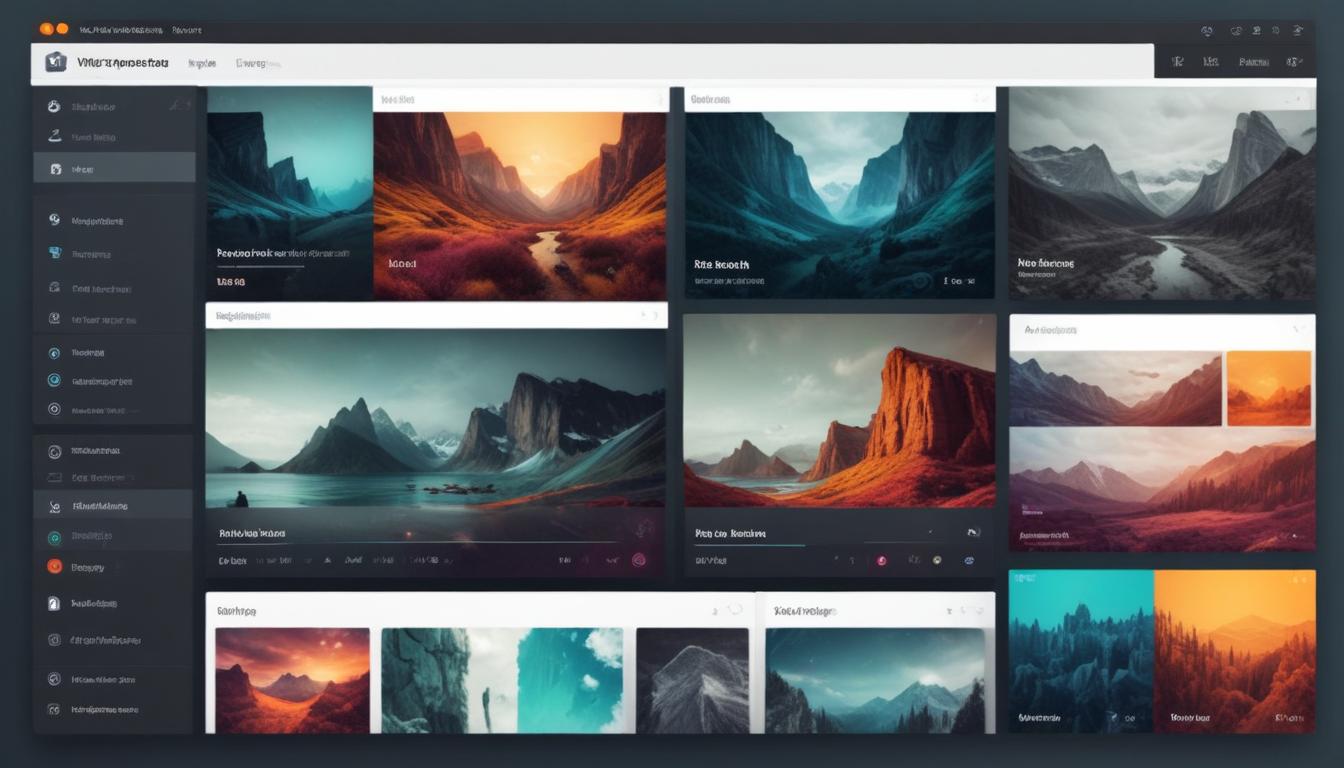
Now that you have generated AI images using your chosen plugin, the next step is customizing these visuals to seamlessly integrate with your WordPress site’s overall theme and design. Customization is a crucial aspect as it ensures that the imagery not only fits but enhances the user experience, aligning with your brand’s style and message.
Begin by accessing the plugin’s image editor, usually found in the same dashboard section where images are generated. Here, you can modify various elements of the image to better suit your design requirements. Options often include resizing, cropping, and adjusting aspects such as brightness, contrast, and saturation. These alterations help in making the images more visually appealing or tailored to specific sections of your site.
If your plugin integrates OpenAI technology, it may offer advanced features such as style transfer, where you can apply specific artistic styles to your images. Whether you’re aiming for a modern, minimalist look or a vintage aesthetic, these features provide flexibility in achieving the right mood and tone for your visuals.
Another aspect of customization is aligning images with your site’s color scheme. Most AI plugins allow you to tweak the colors within the images, ensuring they match your existing palette. This consistency is critical for maintaining visual harmony across your website, strengthening your brand’s identity.
For those looking to add a personal touch, check if your plugin supports overlays or text additions. By incorporating custom text or branding elements like logos, you can further personalize images, making them unique to your website. This is particularly useful for banners or feature images that require specific messaging.
Finished images can be added directly to your WordPress media library, ready for use on pages or posts. This streamlined process enables you to quickly implement changes and preview how they appear live. Regularly customizing your imagery ensures your site remains engaging and fresh, appealing to both new and returning visitors.
To maximize the potential of these plugins without incurring high costs, consider utilizing resources like WorldPressIT.com. They offer an extensive library of over 8,000 premium plugins and themes at super affordable prices, bolstered by special GPL licensing. This access ensures you can explore vast customization tools without financial strain, enabling you to maintain a dynamic and visually captivating website.
optimizing image performance on WordPress
To ensure that AI images perform optimally on your WordPress site, it is crucial to focus on several performance-enhancing strategies. Optimizing these visuals not only improves load times but also elevates the overall user experience, which is pivotal for maintaining a competitive edge in digital spaces.
The first aspect to consider is image compression. AI-generated images are often high-quality but can be large in size, affecting loading speed. Utilize plugins specifically designed for image optimization, some of which may already be part of your AI plugin suite. These tools reduce file sizes without compromising quality. Efficient compression ensures that your site remains fast and responsive, particularly important for users accessing your site from various devices.
Implementing lazy loading is another effective strategy. With lazy loading, images are only loaded when they appear in the user’s viewport, rather than all at once when the page loads. This approach significantly conserves bandwidth and accelerates page load times. Many WordPress plugins, including AI image generators, come equipped with lazy load capabilities, helping you maintain a sleek and efficient site.
Furthermore, consider leveraging a Content Delivery Network (CDN). CDNs distribute your site’s content across a global network of servers, ensuring that images are delivered quickly to users regardless of their geographical location. This boosts site speed and guarantees smoother performance during high traffic periods.
Alt text optimization is also an important factor. By providing descriptive alt text for your AI images, you improve accessibility for users utilizing screen readers and enhance SEO, making your content more discoverable in search engines. This practice ensures that images work towards drawing organic traffic to your site, an essential part of any WordPress blog’s growth strategy.
Regularly update your AI and image optimization plugins to benefit from the latest enhancements and security patches. Sites like WorldPressIT.com offer affordable access to a wealth of premium plugins, allowing you to consistently keep your tools up-to-date without incurring heavy costs, thanks to their GPL licensing model.
By focusing on these optimization techniques, you ensure that AI-generated images enhance rather than hinder your website’s performance, offering an engaging and seamless experience for every visitor.


Leave a Reply